Data Import
The first step to performing any data processing is to load the data into SPCal. SPCal supports import of delimited text files, which can be exported from instrument vendor software, and the raw data of Nu Instruments and TOFWERKs ICP-ToFs. Data files can be loaded from the File -> Open Sample File or by drag-and-drop of files into the program.
Text Files
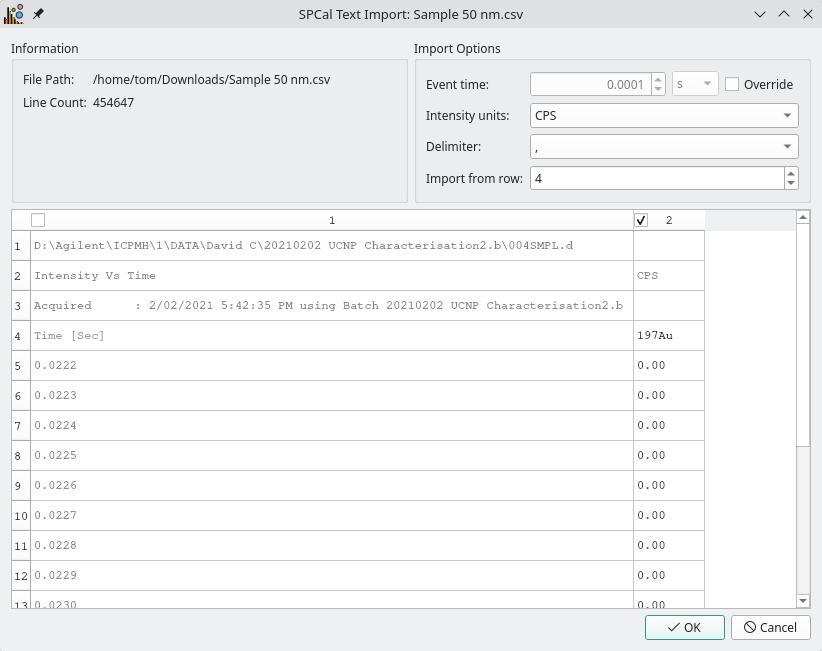
Fig. 6 The import dialog for delimited text files.
Opening a text file will start the text import dialog. This dialog allows you to select which columns in the file to import and skip any non-data rows. The dialog will attempt to guess the correct options when the file is loaded, a description of each option is shown in Table 3. The dialog displays the first 10 lines from the file (Fig. 6) and is used to identify and remove non-data rows and columns before import. In the example in Fig. 6, there are 3 header rows so import proceed from row 4, and column 1 consists of non-particle data (times). The first non-header row should contain the names of each column and can be edited by double-clicking the name. Import can only proceed once all names are valid isotopes e.g., 197Au or Au197. Invalid names are shown in red. Columns can be selected or ignore using their corresponding checkboxes, to quickly select one column click it while holding the Shift key.
Option |
Description |
|---|---|
The instrument event acquisition time. Calculated from data when a column with |
|
Intensity Units |
Selects if data is in counts or counts-per-second (CPS). Defaults to counts unless CPS is included in the file header. |
Delimiter |
The delimiter character, e.g. ‘,’. |
Import From Row |
Skips the first x rows of the file (the header). The first non-skipped row should be the column names. |
Warning
The event time and choice of intensity units (counts or CPS) cannot be chaged after import.
ToF Data
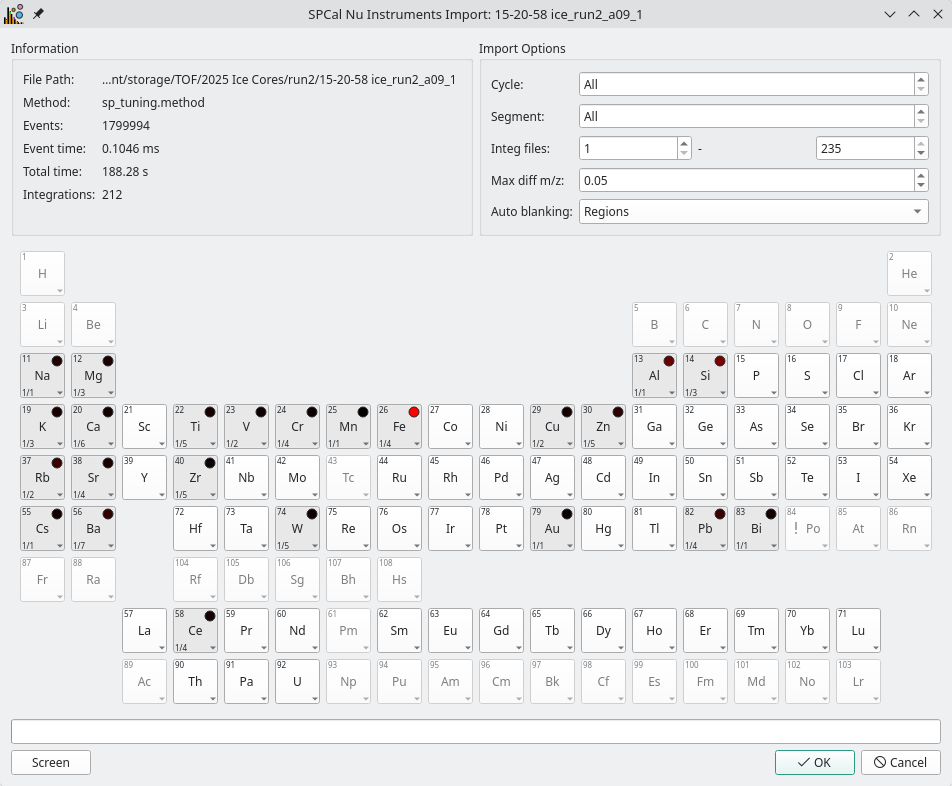
Fig. 7 The import dialog for Nu Instruments and TOFWERKs ToF data. Colors show the relative abundance of peaks following non-target screening. The ! icon shows elements with possible isobaric interferences.
SPCal supports import of ICP-ToF data from both Nu Instruments and TOFWERK instruments. A periodic table is displayed showing recorded isotopes (calculated from masses for Nu Instruments). Left-click an element will add the preferred isotope (most abundant with low interferences). Right-click will allow selection of individual isotopes. Holding Shift while clicking will add all isotopes with a natural abundance greater than 10 %.
Nu Instruments data is stored in a single directory consisting of a number of .integ files with an index file (integrated.index) and run.info file that stores run parameters.
To load Nu Instruments data, either drag-and-drop the directory into the program, or select the run.info file via File -> Open Sample File.
This starts the ToF import dialog, where you can select which elements / isotopes to import. Options for the ToF import dialog are summarised below in Table 4.
TOFWERKs data and parameters are stored in HDF5 archives.
To load this data either drag-and-drop or load the .h5 archive via File -> Open Sample File.
This starts the ToF import dialog, where you can select which elements / isotopes to import.
The TOFWERK importer has no additional options.
Option |
Description |
|---|---|
Cycle (Nu Instruments) |
ToF cycle to load, defaults to ‘All’. |
Segment (Nu Instruments) |
ToF segment to load, defaults to ‘All’. |
Integ files (Nu instruments) |
Choose which integ files to load, defaults to all data. |
Max diff m/z (Nu instruments) |
Maximum difference in mass an isotope can be from the recorded mass |
Apply Auto-Blanking (Nu Instruments) |
Blank out sections of data with over-range signal. These sections are replaced with NaN values when ‘Regions’ is selected, or all masses when ‘All’ is selected. |
Non-target Screening
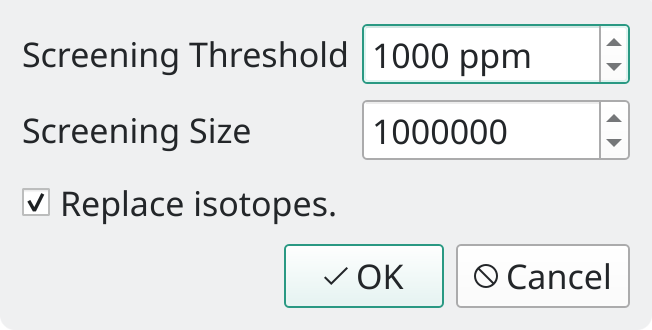
Fig. 8 The non-target screening options available for the ToF importers.
Both the Nu and TOFWERK ToF import dialogs (Fig. 7) have the option to screen data for elements of interest, by pressing the Screen button in the bottom left corner. This will search the first Minimum no. events events of the imported data file for elements / isotopes with greater than Screening ppm detections per million events. If Replace isotopes is selected then all previous selections are discarded, otherwise screened isotopes are selected in addition to existing selections.
See Gonzalez de Vega et al. [1] for an example of using SPCal for screening.