Tools
Various tools are available in SPCal to help with providing sample inputs and manipulating signal data. These are found in the Edit menu.
Density Database
The Density Database is a library containing the density for elements [1], common inorganic materials [2] and polymers [3]. The database is searchable using the formula, name or CAS number of a compound. If started from the Isotope Options dock density field, double-clicking a compound or selecting and pressing Ok will populate that field with the selected value.
Ionic Response Calculator
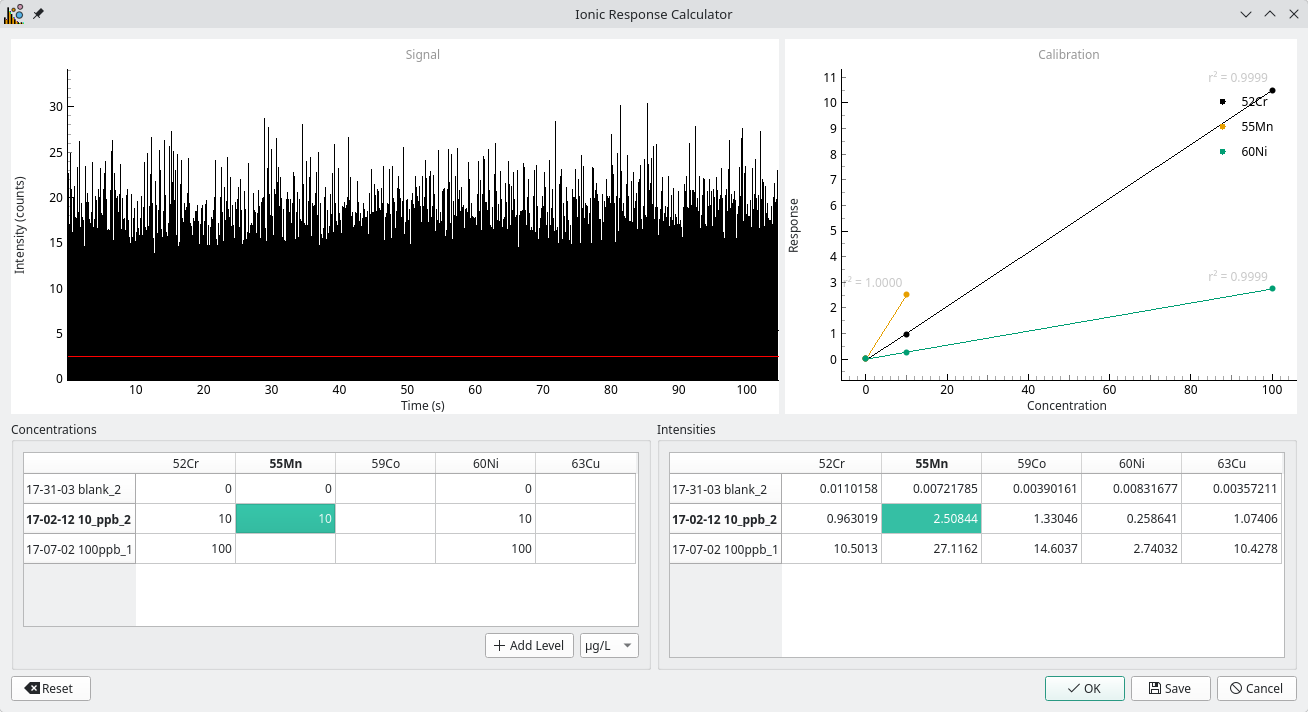
Fig. 25 Measurement of a dissolved standard, the mean of the signal (red line) can be used to determine the ionic response.
To calculate the ionic response one or more dissolved standards must be run under the same conditions as the spICP-MS sample. When one standard is used, the ionic response is taken as the mean value of the data, Fig. 25. When two or more are used, a calibration curve is created, with the ionic response taken as the slope of that curve.
Ideally a blank and several dissolved standards are analysed, covering the range of signal produced by nano-particles in the sample. In practice, a blank and one standard are usually sufficient. As the ionic response will change day-to-day with instrument conditions so should be determined every run.
The Ionic Response Calculator is used to calculate the ionic response using one or more data files. To use the calculator import one or more data files and set their corresponding concentrations in the Concentrations table . For information on importing data see Data Import.
Once all levels are imported the ionic response (the calibration slope) and calibrations can be exported using the Save button. After pressing Ok, all isotope ionic response values will then be added to the processing method and the Isotope Options dock.
Mass Fraction Calculator

Fig. 26 The Mass Fraction Calculator calculates the molar mass (here MW=215.8 g/mol) and the mass fraction from an input formula. The element for which the mass fraction will be returned is highlight in bold.
This calculator computes the mass fraction of the first element from a given formula.
For example, the formula FeMoO4 will give the mass fraction for iron and MoFeO4 the mass fraction for molybdenum.
When started from the mass fraction field of the Isotope Options dock, the corresponding field will be filled.
Signal Calculator
Simple arithmetic operations can be performed on signal data using the calculator found at Edit -> Signal Caluclator. One example is the recovery of sensitivity for multi-isotopic elements, where the total elemental signal is split across multiple masses. Some of this lost sensitivity can be recovered by summing the individual isotopic signals [4].
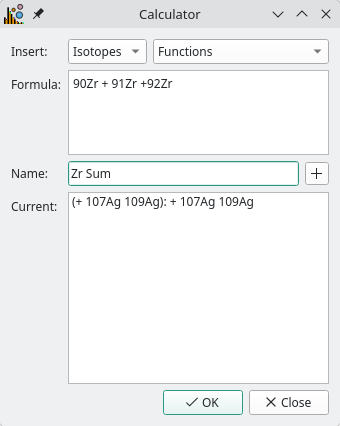
Fig. 27 The Signal Calculator can be used to perform arithmetic operations on one or more element.
To start a calculation, enter a mathematical formula in the Formula box, using the current element names and the + - ^ * / operators.
For example, given data names in the format 10xAg, the sum of silver isotopes can be calculated using 107Ag + 109Ag.
If no name is given then the default name of the output result will be the parsed expression enclosed by parenthesis, e.g. ( + 107Ag 109Ag).
The result is a new isotope like signal called a isotope expression.